
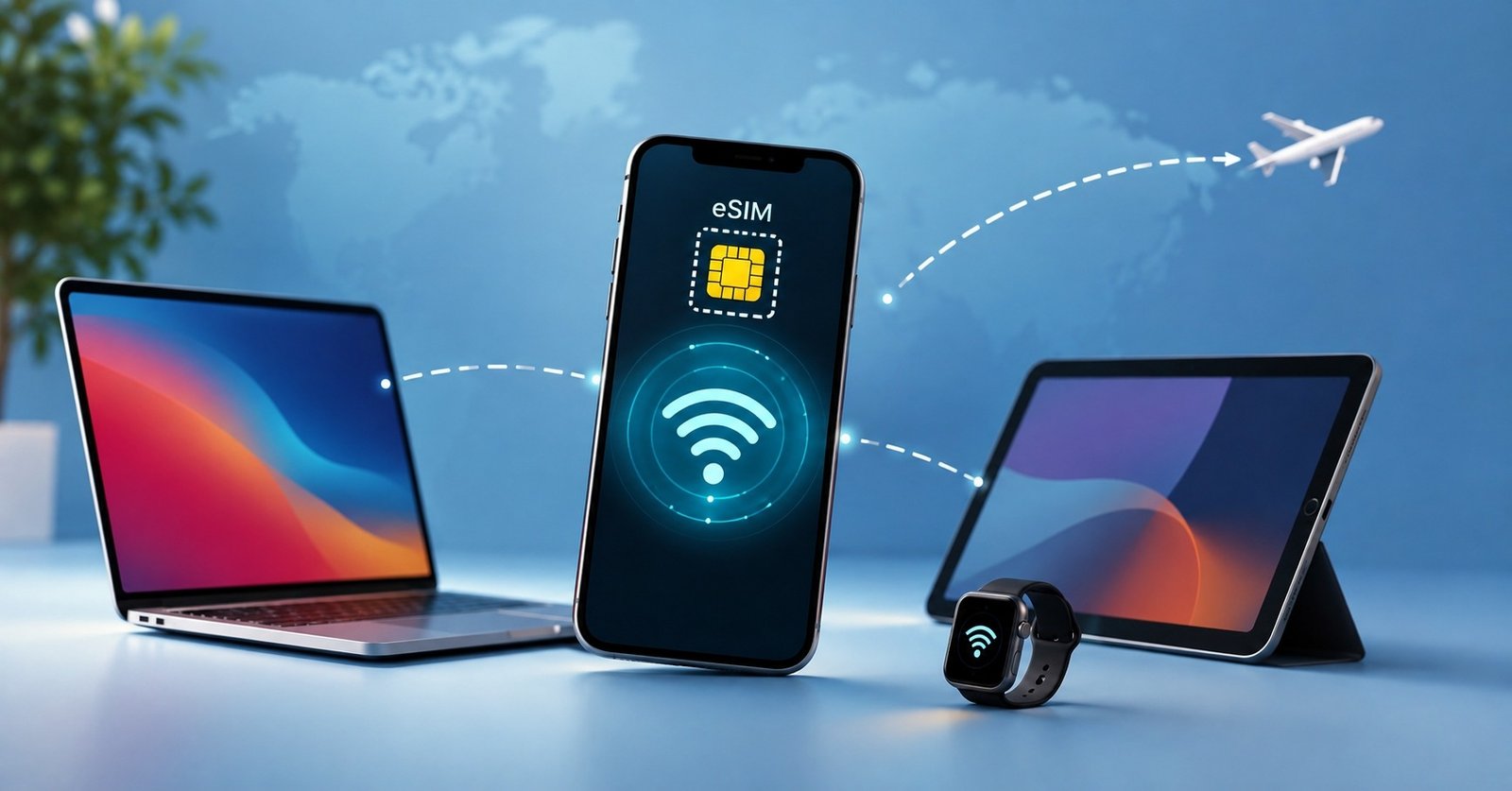
If you use an eSIM while traveling, working remotely, or staying somewhere without reliable Wi-Fi, you may wonder whether you can share that mobile connection with another device. This is where a hotspot esim can be useful.
The good news is that an eSIM can generally work with your phone’s hotspot feature just like a physical SIM. Your phone receives mobile data through the eSIM and can share that connection with a laptop, tablet, or another smartphone.
However, there is an important detail: not every eSIM plan necessarily allows tethering. Your phone, network, and specific data plan can all affect whether hotspot sharing works.
In this guide, we’ll explain how eSIM hotspot sharing works, how to set it up, what can stop it from working, how much data it can use, and what you should check before choosing an eSIM for hotspot use.
What Is an eSIM Hotspot?
An eSIM hotspot is simply your phone sharing its cellular data connection with other devices through Wi-Fi, Bluetooth, or USB tethering.
The eSIM itself does not create a special type of hotspot. Instead, it provides the mobile data connection that your phone shares.
For example, imagine you are traveling and your phone has a 10GB travel eSIM. You need to work on your laptop, but the hotel Wi-Fi is slow. You can activate your phone’s Personal Hotspot and connect your laptop to it.
The laptop then uses the mobile data supplied by the eSIM.
This means an eSIM tethering connection works in much the same way as tethering through a traditional SIM. Current eSIM guides from Airalo, Nomad, and other providers confirm that eSIM technology itself does not prevent hotspot use. What matters is whether your plan and device permit it.
So, if you’re asking, “Can you hotspot with an eSIM?”, the short answer is usually yes.
Can eSIMs Share Mobile Data?
Yes. An eSIM can share its mobile data connection when your phone and plan support hotspot functionality.
When you turn on your phone’s hotspot, the basic process is:
eSIM → mobile network → phone → Wi-Fi hotspot → connected device
The connected device does not need an eSIM. For example, a laptop with no cellular connection can get online through your phone’s hotspot.
You can use it to:
- Connect a laptop while traveling
- Give internet access to a tablet
- Connect another smartphone
- Work remotely from a hotel or café
- Get online when public Wi-Fi is unavailable
- Share a connection with a travel companion
The important thing to understand is that hotspot data normally comes from the active mobile data plan. If your eSIM has 5GB remaining and your laptop consumes 1GB through the hotspot, you generally have about 4GB left.
Some plans can have separate tethering restrictions or limits, so don’t assume that an “unlimited” data plan automatically means unlimited hotspot data. Recent guides specifically warn that certain unlimited or promotional plans may restrict, cap, or throttle tethered usage.
What Controls eSIM Hotspot Access?
If you’re wondering “Does eSIM support hotspot?”, the eSIM technology itself is usually not the deciding factor.
Three things matter most:
1. Your Phone
Your smartphone needs to support mobile hotspot or tethering. Most modern iPhones and Android phones do.
2. Your eSIM Plan
The provider must allow tethering on the particular plan you’re using.
This is especially important with travel eSIMs. Two plans from different providers can have completely different hotspot policies.
3. Network Configuration
Your phone needs to be correctly connected to the eSIM data line and, in some cases, have the correct APN configuration.
Airalo’s support documentation, for example, notes that some eSIM installations may require specific APN settings for Personal Hotspot.
Therefore, before buying an eSIM hotspot plan, check the provider’s terms for words such as:
- Hotspot
- Tethering
- Personal Hotspot
- Internet sharing
- Data sharing
If the provider does not clearly mention tethering, don’t assume it is included.
How to Use eSIM Hotspot on iPhone
Setting up an iPhone hotspot is usually straightforward.
First, make sure your eSIM is active and selected for mobile data.
Then:
- Open Settings.
- Tap Personal Hotspot.
- Turn on Allow Others to Join.
- Note the Wi-Fi password shown on the screen.
- On your laptop or tablet, open Wi-Fi.
- Select your iPhone’s hotspot name.
- Enter the password.
Your other device should now use the iPhone’s cellular data connection.
If you are using two SIMs, pay particular attention to which line is selected for cellular data. Your iPhone may have a physical SIM for your normal number and an eSIM for travel. If the wrong line is selected, your hotspot may use the wrong connection.
This is one of the most important checks when using a hotspot esim abroad.
Also remember that hotspot performance depends heavily on your cellular signal. If your phone has a weak connection, the connected laptop will not magically receive a stronger one.
How to Use eSIM Hotspot on Android
Android menus can vary between Samsung, Google Pixel, Xiaomi, and other manufacturers, but the basic process is similar.
Try these steps:
- Open Settings.
- Go to Network & Internet, Connections, or a similar option.
- Open Hotspot & Tethering or Mobile Hotspot.
- Turn on Wi-Fi Hotspot.
- Check the hotspot name and password.
- Connect your laptop, tablet, or other phone.
On some devices, you may need to configure the APN before hotspot functionality works correctly.
Airalo’s current support instructions also recommend checking APN configuration when hotspot is not functioning correctly.
If you have a dual-SIM Android phone, make sure your eSIM is selected as the mobile-data SIM before troubleshooting the hotspot itself.
Can You Use an eSIM Hotspot for a Laptop?
Yes. This is one of the most useful reasons to use an eSIM hotspot.
A laptop normally connects to the internet through Wi-Fi, Ethernet, or its own cellular connection. If none is available, your phone can act as a portable Wi-Fi router.
For example, you could use an eSIM connection to:
- Send emails
- Join video meetings
- Access cloud documents
- Browse websites
- Use messaging apps
- Work remotely
- Download smaller files
However, laptops can consume significantly more data than phones.
A desktop website may load larger images and scripts. Cloud applications may synchronize files in the background. Operating-system updates can also consume large amounts of data without you noticing.
Before connecting a laptop, consider turning off automatic updates, cloud backups, and unnecessary synchronization.
This can make your travel data last much longer.
Why Is Your eSIM Hotspot Not Working?
If your hotspot option is missing or another device cannot connect, don’t immediately assume that your eSIM is defective.
There are several possible causes.
The eSIM Isn’t the Data SIM
On a dual-SIM phone, you may have selected your physical SIM instead of the eSIM for mobile data.
Check your cellular or SIM settings and confirm that the eSIM is the active data line.
Your Plan Blocks Tethering
Some providers or specific plans may restrict hotspot usage. This is particularly important for unlimited plans.
Check your plan’s terms before changing other settings.
APN Settings Are Incorrect
Some travel eSIMs require manual APN configuration. If the APN is incorrect, mobile data or hotspot functionality may fail.
Follow the exact APN information provided by your eSIM provider rather than copying settings from another provider.
Your Phone Has a Weak Signal
Hotspot cannot provide better cellular reception than the phone itself.
If your phone has one bar of signal, the connected laptop may experience slow speeds, interruptions, or difficulty loading websites.
Hotspot Is Disabled
It sounds obvious, but make sure Personal Hotspot or Mobile Hotspot is actually enabled.
If you’ve checked everything and the problem remains, restart your phone and reconnect the other device.
Also Read: 6G Network Technology: Features, Uses, and Future Guide
How Much Data Does eSIM Hotspot Use?
Hotspot does not automatically apply a special data rate. The amount of data consumed depends mainly on what the connected device does.
For example:
| Activity | Typical impact |
| Email and messaging | Low |
| Web browsing | Low to moderate |
| Social media | Moderate |
| Music streaming | Moderate |
| Video calls | Moderate to high |
| HD video streaming | High |
| Large downloads | Very high |
| Cloud backup | Very high |
| System updates | Very high |
The biggest mistake is assuming that a laptop uses data exactly like a phone.
A laptop can quietly consume data through background processes. Cloud storage applications, browser updates, operating-system downloads, and automatic backups can all use your eSIM allowance.
If you’re using a hotspot esim for work, monitor your data regularly and set a data limit where your device supports it.
Can You Use Hotspot Abroad With an eSIM?
Yes, this is one of the main travel use cases for eSIMs.
A travel eSIM can provide mobile data through a local or roaming network, and your phone can potentially share that connection through hotspot.
But traveling abroad introduces another consideration: the plan’s roaming and tethering rules.
Before you travel, check:
- Does the plan support hotspot?
- Does the plan work in your destination?
- Is tethering subject to a separate limit?
- Does the plan have a full-speed data allowance?
- Do you need data roaming enabled for the eSIM?
- Is your phone unlocked and eSIM-compatible?
A travel eSIM can be convenient because you don’t need to physically replace your SIM card. You can install the eSIM before leaving and switch your phone’s data connection when you arrive.
Still, don’t rely on hotspot for important work until you’ve confirmed that your particular plan allows it.
Is an eSIM Hotspot Better Than Public Wi-Fi?
It depends on the situation.
Public Wi-Fi can be convenient and may not consume your mobile data, but you don’t always know how reliable or secure an unfamiliar network is.
Using your own phone as a hotspot gives you a private connection controlled through your device.
It can be particularly useful when:
- You are working with sensitive information
- Hotel Wi-Fi is unreliable
- You are at an airport
- You are traveling by train
- You need a connection immediately
- You don’t want to join an unfamiliar public network
On the other hand, hotspot can drain your phone’s battery faster and consume your data allowance more quickly.
For occasional browsing, public Wi-Fi may be enough. For remote work or important tasks, having a reliable mobile-data backup can be valuable.
What Should You Check Before Buying a Hotspot eSIM?
If your main reason for purchasing an eSIM is to connect a laptop or other devices, don’t choose a plan based only on its data amount.
Check these points first:
Hotspot Permission
Confirm that tethering is allowed on the exact plan you intend to purchase.
Data Allowance
Estimate how much data your connected devices will actually use.
Speed Restrictions
An unlimited plan may still have a full-speed allowance or a separate hotspot restriction.
Destination Coverage
Make sure the eSIM works in the country or countries you plan to visit.
Device Compatibility
Your phone must support eSIM, and the operating system should support mobile hotspot.
APN Requirements
Check whether the provider requires manual APN settings.
Dual-SIM Support
If you plan to keep your normal SIM active, make sure you know which SIM will handle mobile data.
These checks can prevent the frustrating situation where you arrive at your destination expecting your hotspot esim to work, only to discover that tethering is restricted.
Hotspot eSIM vs Portable Wi-Fi
A phone-based hotspot isn’t the only option for sharing mobile data.
A portable Wi-Fi device can connect to a cellular network and create a Wi-Fi network for several devices. Some modern travel routers also support eSIM technology.
A phone hotspot is usually simpler because you already carry the device.
A dedicated router may be better when you need:
- Multiple devices connected for long periods
- A separate battery-powered connection
- Less battery drain on your phone
- A connection shared by several people
For occasional laptop use, however, your phone’s eSIM hotspot can be the simpler solution.
Final Answer: Can You Use an eSIM as a Hotspot?
Yes — in most cases, you can use an eSIM as a hotspot.
The eSIM works as the mobile-data source, while your phone’s hotspot feature shares that connection with other devices. You can connect laptops, tablets, and other smartphones without installing an eSIM on each device.
The important part is that hotspot support depends on more than the eSIM itself. Your phone must support tethering, your active data plan must permit it, and your network configuration must be correct. Current provider guides consistently highlight these conditions.
If you’re traveling, check the provider’s tethering policy before buying a plan. And if you’re using your phone for remote work, remember that laptops can consume data quickly through video calls, cloud synchronization, updates, and downloads.
Once those factors are checked, your phone can effectively become a small portable router wherever your eSIM has a usable cellular connection.
Frequently Asked Questions
Can you hotspot with an eSIM?
Yes. Most compatible phones can share their eSIM mobile-data connection through Personal Hotspot or Mobile Hotspot, provided the specific plan allows tethering.
Does eSIM support hotspot?
Yes. eSIM technology itself supports hotspot in the same general way as a physical SIM. Restrictions usually come from the device, network, or specific data plan.
Can eSIM share data with a laptop?
Yes. Your phone can share its eSIM data connection with a Wi-Fi-enabled laptop through a personal hotspot.
Does eSIM tethering use my normal data?
Usually, yes. Data consumed by connected devices normally counts toward the active eSIM plan’s data allowance. Some plans may have separate tethering limits.
Why does my eSIM hotspot not work?
Check whether your eSIM is selected for mobile data, whether your plan permits tethering, whether hotspot is enabled, and whether your APN settings are correct. A weak cellular signal can also cause problems.
Can I use an eSIM hotspot while traveling?
Yes, if the eSIM works at your destination and the plan permits hotspot use. Always check the plan’s tethering and data restrictions before relying on it for work or other important connectivity.
Is hotspot available on every eSIM?
No. The fact that a phone supports hotspot does not guarantee that every eSIM plan permits tethering. Provider and plan-specific rules can apply.

One Response