A computer can perform many tasks, from everyday browsing and office work to gaming, creative projects, and online learning. However, even a powerful system may feel slow or unresponsive when its software is outdated or its hardware is not suited to the workload. Understanding your computer’s condition is the first step toward improving its performance. Tools and resources focused on update drivers rate my PC checks, and reaction time test activities can help users make more informed decisions about their devices and digital skills.
Why Keeping Drivers Updated Matters
Drivers are small but important software components that allow the operating system to communicate with hardware. Devices such as graphics cards, network adapters, printers, sound cards, and chipsets rely on drivers to work as intended. If a driver is missing, damaged, or outdated, the related hardware may not perform reliably.
Choosing to update drivers can help resolve compatibility problems, improve stability, and enable support for newer applications or operating system features. Graphics driver updates, for example, may include fixes for games, creative software, or display issues. Network driver updates can sometimes address connection drops or inconsistent wireless performance.
However, installing every available update without checking its relevance is not always necessary. A sensible approach is to identify the device model, use Windows Update or the hardware manufacturer’s official support page, and read the release notes when available. Avoid unofficial driver download sites that bundle unknown programs or offer files from unclear sources.
How to Rate My PC and Understand the Results
People often ask how to rate my PC because they want to know whether their computer is suitable for a particular task. A system’s overall capability depends on several components rather than one specification. The processor handles general calculations, memory helps manage active applications, storage affects loading and file access, and the graphics processor supports visual workloads.
A PC assessment tool can collect hardware information and compare it with common requirements. Some services provide a general score, while others focus on gaming, productivity, or specific software. These results are useful as a starting point, but a single rating should not be treated as a complete measure of real-world performance.
When reviewing a computer, consider these important areas:
- Processor: Check the model, generation, core count, and performance level.
- RAM: Make sure there is enough memory for the applications you regularly use.
- Storage: An SSD usually offers faster startup and loading than a traditional hard drive.
- Graphics: Compare the GPU with the requirements of games or creative applications.
- Operating system: Confirm that your system receives updates and supports the software you need.
A rating becomes more meaningful when it is connected to a real goal. Someone who mainly writes documents and browses the web may not need a high-end graphics card. A video editor, engineer, or gamer may need stronger processing and graphics capabilities. Instead of upgrading everything, identify the component that limits your most important tasks.
What a Reaction Time Test Measures
A reaction time test measures the interval between a stimulus and a person’s response. In a typical online test, a shape or color appears after a short wait, and the user clicks or presses a key as quickly as possible. The result is usually displayed in milliseconds.
Reaction speed can be interesting for gamers, athletes, students, and anyone curious about attention and responsiveness. In gaming, quick responses may help with timing, aiming, and reacting to changes on screen. In everyday life, reaction speed is only one part of performance; decision-making, accuracy, awareness, and experience also matter.
Test results can vary from one attempt to another. Sleep, stress, distractions, device latency, browser performance, and input equipment can all influence the recorded time. A touchscreen, wireless mouse, or older computer may introduce delays that are not caused by the user’s reflexes.
For a more useful comparison, take several attempts under similar conditions and look at the average rather than focusing on one unusually fast or slow result. Use the same device and input method each time. Treat an online score as an informal measure, not a medical assessment or a definitive judgment of ability.
Bringing the Three Areas Together
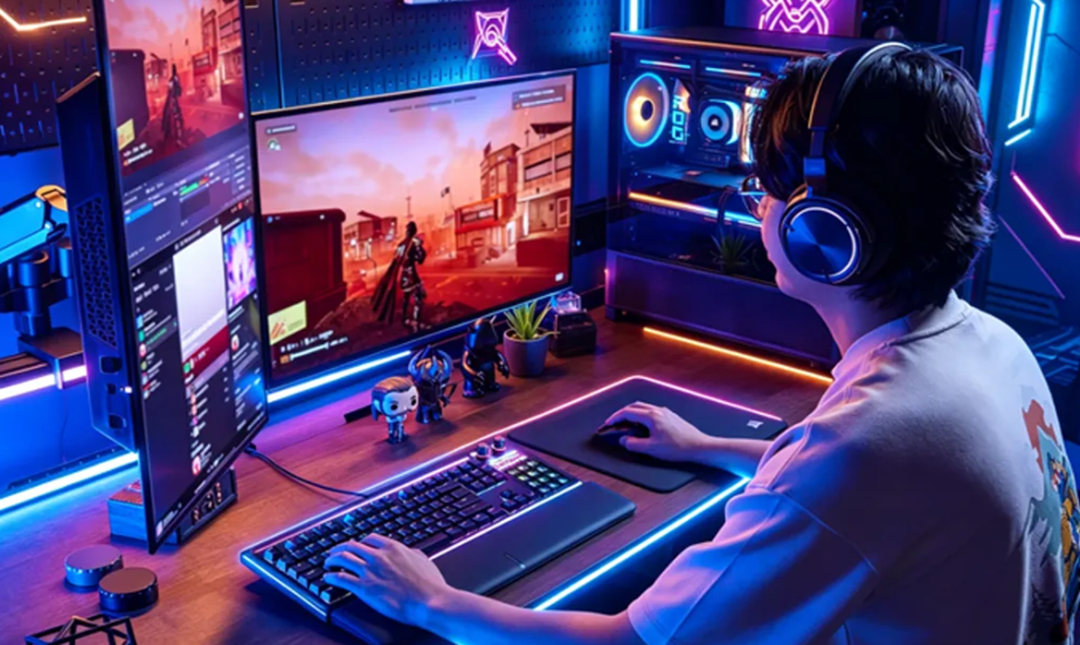
Driver maintenance, hardware assessment, and reaction testing can support a more complete understanding of a computer setup. For example, a gamer who experiences stuttering or delayed input can begin by checking system requirements and reviewing hardware performance. They can then look for relevant graphics, chipset, or peripheral driver updates.
After updating drivers, the user can run the same game or application again and observe whether stability has improved. A reaction time test may also be repeated using the same equipment and conditions. This does not prove that a driver update has improved human reflexes, but it can help identify whether changes in system responsiveness affect the testing experience.
Practical Tips for Better Results
Start with a clear description of the problem. Note whether the computer is slow at startup, disconnects from Wi-Fi, produces unusual graphics errors, or struggles with a particular application. Specific symptoms make troubleshooting more effective.
Next, check the computer’s specifications and compare them with the software’s official requirements. Update only drivers that match the installed hardware, and download them from trusted manufacturer sources. Keep important files backed up before major updates or hardware changes.
Conclusion
A well-maintained computer is easier to rely on, but improving it starts with understanding what it needs. Taking time to update drivers can support hardware compatibility and stability. Using a rate my PC assessment can clarify whether a system matches particular workloads, while a reaction time test offers an engaging way to measure response speed under consistent conditions.
Each approach serves a different purpose, yet together they encourage smarter technology habits. Check specifications before upgrading, use trusted sources for drivers, and interpret test scores carefully. With regular maintenance and realistic expectations, users can make better decisions about their computers and get more value from the equipment they already own.