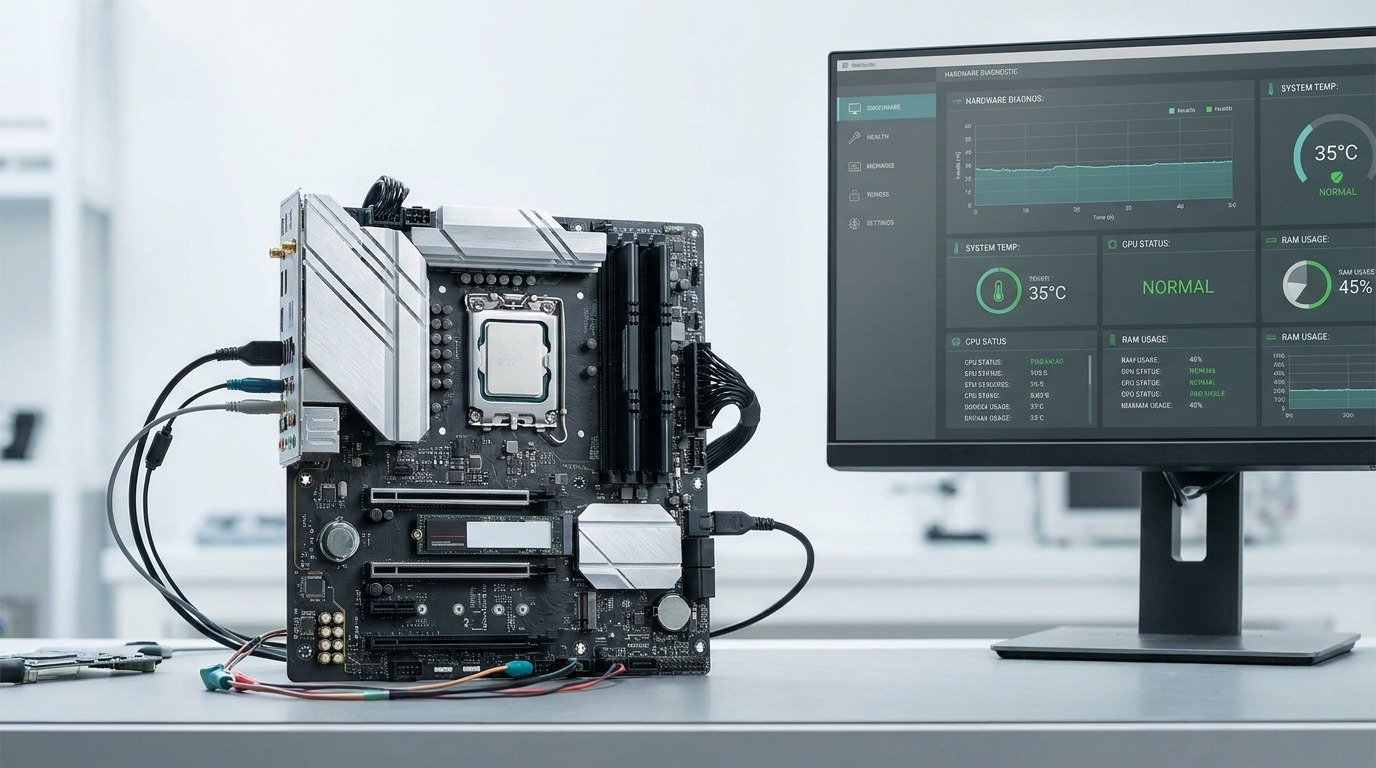
A diag image is a technology-related image or software environment used to examine the condition of a computer, hardware component, or digital system. The term is commonly associated with diagnostic images that help technicians identify technical faults, inspect system behavior, and understand why a device is not working as expected. Unlike an ordinary photograph, a diagnostic image has a specific technical purpose: it provides information that can support testing, troubleshooting, or system analysis.
In computing, the word image can have more than one meaning. It may describe a visual representation of diagnostic information, but it can also refer to a complete software environment packaged into a bootable image. This second meaning is particularly important in hardware diagnostics. A manufacturer may provide a separate diagnostic operating environment that technicians can start without relying on the computer’s regular operating system. It can contain specialized utilities for testing memory, storage, processors, network interfaces, and other hardware components.
For example, imagine a server that repeatedly shuts down during normal operation. The operating system may not provide enough information to determine whether the problem comes from overheating, unstable memory, or a failing component. A technician can use an independent diagnostic environment to run controlled hardware tests and collect useful results. This helps narrow down possible causes without depending entirely on the installed software.
A diagnostic system image can also be useful during manufacturing, device validation, maintenance, and repair operations. Hardware manufacturers use dedicated testing environments to check whether equipment performs correctly before it reaches customers. Data center teams can use structured diagnostic frameworks to evaluate equipment during deployment and maintenance. The Open Compute Project, for example, supports a portable hardware diagnostic framework for testing and validation across different stages of hardware development and operation. GitHub +2
However, it is important to understand that diag image is not one universal file format or a standardized name for every diagnostic tool. Its exact meaning depends on the manufacturer, operating system, device architecture, and technical context. Sometimes people use the phrase for a captured diagnostic snapshot, while technical documentation may use it for a bootable diagnostic software image.
Understanding this distinction makes it easier to recognize what a particular file or tool actually does. In practical technology environments, its main value is helping people move from unexplained errors toward measurable evidence and a more accurate technical solution.
How Does a Diag Image Work?
A diagnostic image works by providing a way to collect, organize, or examine technical information about a device or system. Its operation depends on the type of diagnostic image being used. A bootable hardware diagnostic environment works differently from a visual system report, but both aim to make technical problems easier to investigate.
In a bootable diagnostic environment, the process usually begins before the regular operating system loads. A technician selects the appropriate diagnostic option through a supported boot menu, firmware interface, or manufacturer-specific procedure. The computer then starts a separate environment containing testing utilities and the instructions needed to communicate with supported hardware.
Once the environment is running, diagnostic tools can examine individual components. For example, a memory test checks whether RAM can store and retrieve information correctly. A storage test examines drive health and identifies certain read, write, or hardware-related errors. Processor tests can evaluate computational stability under controlled workloads. Network tests may check connectivity, interface status, and communication problems.
The results are then displayed through reports, status indicators, error codes, or log files. A technician compares these findings with expected operating conditions to identify possible faults. A failed test does not always explain the complete cause, but it provides evidence that helps guide the next investigation.
A different process applies when a diag image refers to a diagnostic snapshot or system report. In this situation, the operating system or an installed utility collects information while the device is running. This may include error events, application crashes, performance measurements, driver details, and system configuration. Windows diagnostic documentation, for example, describes system-generated logs, trace files, crash information, and performance data that can help investigate software and hardware problems. Microsoft Learn +1
The information may then be organized into a readable report or analyzed with specialized diagnostic software.
Consider a laptop that becomes unusually slow after a software update. A diagnostic report might reveal high memory consumption, repeated application failures, or a driver-related error. Instead of reinstalling the operating system immediately, a technician can use that information to investigate the most likely cause.
The overall workflow can be understood through five stages:
- Collection: Gather system information or start a dedicated diagnostic environment.
- Testing: Examine selected hardware components or software processes.
- Recording: Store results, error codes, and relevant system events.
- Analysis: Compare the findings with expected system behavior.
- Resolution: Apply a repair, configuration change, update, or component replacement.
This process makes technical investigation more structured. Rather than relying on assumptions, support teams can use recorded evidence to decide what should be checked next.
What Information Does a Diag Image Contain?
The information contained in a diagnostic image depends on its purpose and the technology used to create it. Some images provide detailed hardware test environments, while others collect operating system information, application errors, and system performance data. Understanding these details helps technicians determine whether a problem originates from hardware, software, configuration, or communication between different components.
One important category is hardware information. This can include processor specifications, installed memory, storage capacity, device model, firmware versions, and connected components. Such information helps support teams understand the system being investigated before they perform more advanced tests.
Another category is system logs and error records. These records document events that occur while a device operates. For example, a computer may record unexpected shutdowns, failed application launches, driver errors, or hardware-related warnings. When several errors appear around the same time, technicians can examine their relationship to identify a possible cause.
Performance measurements are also valuable. A diagnostic report may contain information about CPU utilization, memory consumption, disk activity, temperature, or battery performance. These measurements help explain why a computer becomes slow, overheats, or loses power unexpectedly. However, not every diagnostic environment collects every measurement, and some require manufacturer-specific utilities.
Configuration information provides another useful layer. It may describe installed drivers, firmware settings, operating system versions, network configurations, and device capabilities. A configuration mismatch can sometimes create problems even when the physical hardware is working correctly.
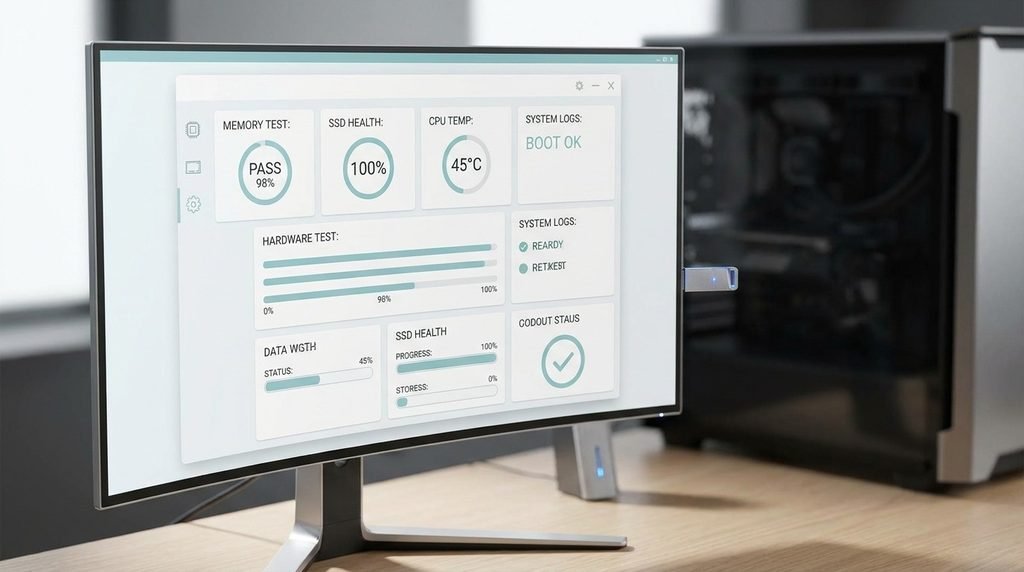
Some diagnostic environments also include test results and hardware status information. A memory test may report completed passes and detected errors, while a storage utility may identify health warnings or unsuccessful operations. These results help technicians decide whether additional testing or component replacement is necessary.
A well-organized diagnostic report may contain the following information:
| Information type | What it helps identify |
| Hardware details | Device specifications and component identity |
| System logs | Errors, warnings, and unexpected events |
| Performance data | CPU, memory, storage, and temperature issues |
| Configuration details | Driver, firmware, and operating system settings |
| Test results | Hardware failures and abnormal behavior |
| Crash information | Application or operating system failures |
Privacy is another important consideration. Diagnostic files can sometimes contain device identifiers, account-related information, network details, or memory contents. Microsoft explains that certain optional Windows diagnostic data can include additional device activity and crash information. Therefore, technicians should inspect files before sharing them outside an authorized support process. Microsoft Learn +1
Not every diagnostic file includes all these categories. Its contents depend on the collection settings, software permissions, hardware platform, and purpose of the investigation. Knowing what information is available helps avoid incorrect conclusions and makes technical troubleshooting more reliable.
Also Read: Emergency Room Triage Workflow: Smarter Decisions
Common Types of Diag Images
Diagnostic images are not limited to one technical format. In computing, they can take different forms depending on whether the purpose is hardware testing, software investigation, performance monitoring, or system recovery. Recognizing these differences helps technicians select the correct diagnostic approach instead of using the same method for every technical problem.
- Bootable diagnostic images
A bootable diagnostic image contains a specialized software environment that can start independently of the regular operating system. It is commonly used when a computer cannot boot normally or when technicians need to test hardware without interference from installed software. Some server platforms support dedicated diagnostic operating systems stored in separate partitions. Open Network Install Environment documentation describes how hardware vendors can provide diagnostic images alongside network operating system installation environments. Open Network Install Environment documentation +1
- Hardware diagnostic images
These environments focus on physical components such as RAM, processors, storage devices, and network interfaces. They help identify hardware-related problems through controlled tests. Manufacturers may provide their own testing utilities to ensure compatibility with particular device models.
- System diagnostic snapshots
A system snapshot captures selected information about a computer at a particular point in time. It may include configuration details, running processes, error records, or performance measurements. Technicians use these records to understand what was happening when a problem occurred.
- Crash and error reports
These reports contain information generated after an application failure, operating system crash, or unexpected shutdown. They may include error codes, timestamps, application details, and crash-related data. This information helps developers investigate software defects and system instability.
- Network diagnostic reports
Network diagnostic reports focus on communication problems between devices, servers, routers, and network services. They may contain connection status, interface information, latency measurements, or relevant error records. These details help administrators investigate connection failures and network performance issues.
- Firmware diagnostic environments
Firmware-level diagnostic tools operate close to the device’s hardware and startup process. They can be useful when the operating system is unavailable or when a technician needs to examine hardware before normal system initialization.
These categories are related, but they are not interchangeable. A crash report cannot replace a complete memory test, and a bootable diagnostic environment is not the same as a screenshot of system information.
Selecting the right type depends on the problem being investigated. A device that fails to start may require a bootable testing environment, whereas an application that repeatedly crashes may need software logs and crash reports. This distinction improves troubleshooting accuracy and prevents unnecessary repair steps.
How Diag Images Help Fix Technical Issues
Technical problems are not always visible from the outside. A computer may freeze without displaying an error, a server may experience random restarts, or a storage device may become unreliable without immediately stopping its operation. In these situations, diagnostic information helps technicians investigate what is happening inside the system.
One of the biggest advantages of a diag image is that it supports evidence-based troubleshooting. Instead of replacing components or changing settings based on assumptions, technicians can examine recorded information and perform targeted tests. This makes the repair process more organized and can reduce unnecessary maintenance.
For example, imagine a desktop computer that frequently freezes while running demanding applications. The issue could be related to insufficient memory, overheating, a storage problem, or an unstable driver. A technician can review system logs, check resource usage, and run suitable hardware tests. If memory testing identifies errors, the investigation can focus on the RAM rather than replacing unrelated components.
The same approach is useful in server environments. A server may experience unexpected restarts during periods of high workload. Hardware event logs can reveal thermal warnings, power-related events, or other recorded failures. Dell’s documentation on BIOS event logs explains how event records can help investigate intermittent shutdowns and thermal problems. Dell US +1
Diagnostic information also supports software troubleshooting. When an application crashes repeatedly, developers can examine crash reports, error messages, and relevant system events. These records can help identify faulty application behavior, incompatible drivers, or problems introduced by a software update.
Another useful application is network troubleshooting. If devices repeatedly lose their connection, administrators can examine interface status, connection events, and network measurements to understand where communication is failing.
The practical benefits include:
- Faster fault identification: Technical evidence helps narrow down possible causes.
- Better repair decisions: Technicians can focus on the component or process most likely responsible.
- Reduced downtime: Structured testing can help avoid unnecessary repair attempts.
- Improved maintenance: Repeated diagnostic results can reveal developing hardware problems.
- Clearer technical reporting: Support teams can share findings with other engineers.
However, diagnostic results should not be treated as automatic proof of every failure. A single warning may have several possible explanations, and some intermittent problems do not appear during short tests. Technicians should combine test results with device history, operating conditions, and additional checks.
Ultimately, the value of a diag image comes from the evidence it provides. When used correctly, it turns confusing technical symptoms into information that professionals can investigate and act upon.
Tools Used to Create and Analyze Diag Images
Creating and analyzing diagnostic information requires suitable tools. The best option depends on the device, operating system, hardware manufacturer, and type of problem. Some utilities are designed for ordinary computer users, while others are intended for professional technicians and enterprise infrastructure teams.
Manufacturer diagnostic utilities are often the first choice for hardware testing. Companies provide dedicated applications or firmware-based testing environments to examine supported components. For example, Dell SupportAssist includes hardware scanning and troubleshooting features that help users identify potential device problems. Its diagnostic procedures can test components such as the system board, storage devices, and camera. Dell Pakistan
Windows diagnostic tools are useful for investigating operating system and application problems. Windows generates diagnostic information that can include error events, system performance details, and crash-related records. Microsoft’s Diagnostic Data Viewer also allows users to review diagnostic data collected by Windows. Microsoft Learn +1
Firmware and boot-level utilities are useful when the regular operating system cannot start or when technicians need to examine hardware independently. These environments can run before the main operating system loads and may provide access to component-specific tests.
Log analysis tools help organize large collections of technical records. Developers and system administrators can use log viewers and monitoring platforms to search for repeated error messages, compare timestamps, and identify patterns. This is particularly helpful when investigating problems that affect multiple computers or services.
Hardware testing utilities provide specialized checks for individual components. Depending on platform support, these may examine memory stability, storage health, processor behavior, and network connectivity.
The following comparison shows where different tools fit:
| Tool category | Main purpose | Typical users |
| Manufacturer utilities | Device and component testing | Technicians and users |
| Windows diagnostics | OS and application investigation | Users and IT teams |
| Bootable environments | Independent hardware testing | Repair professionals |
| Log analyzers | Error and event investigation | Developers and administrators |
| Hardware testing tools | Component performance checks | Hardware engineers |
When choosing a diagnostic tool, compatibility should be the first consideration. A utility designed for one hardware platform may not support another device. Users should also check whether the software comes from a trusted manufacturer or recognized developer.
Another important factor is the type of output produced. Some tools create simple summaries, while others generate detailed reports that require technical knowledge. The ideal solution provides enough information to investigate the problem without collecting unnecessary personal or system data.
A diag image should also be stored and shared carefully. Diagnostic reports can reveal system configurations, identifiers, and other sens