
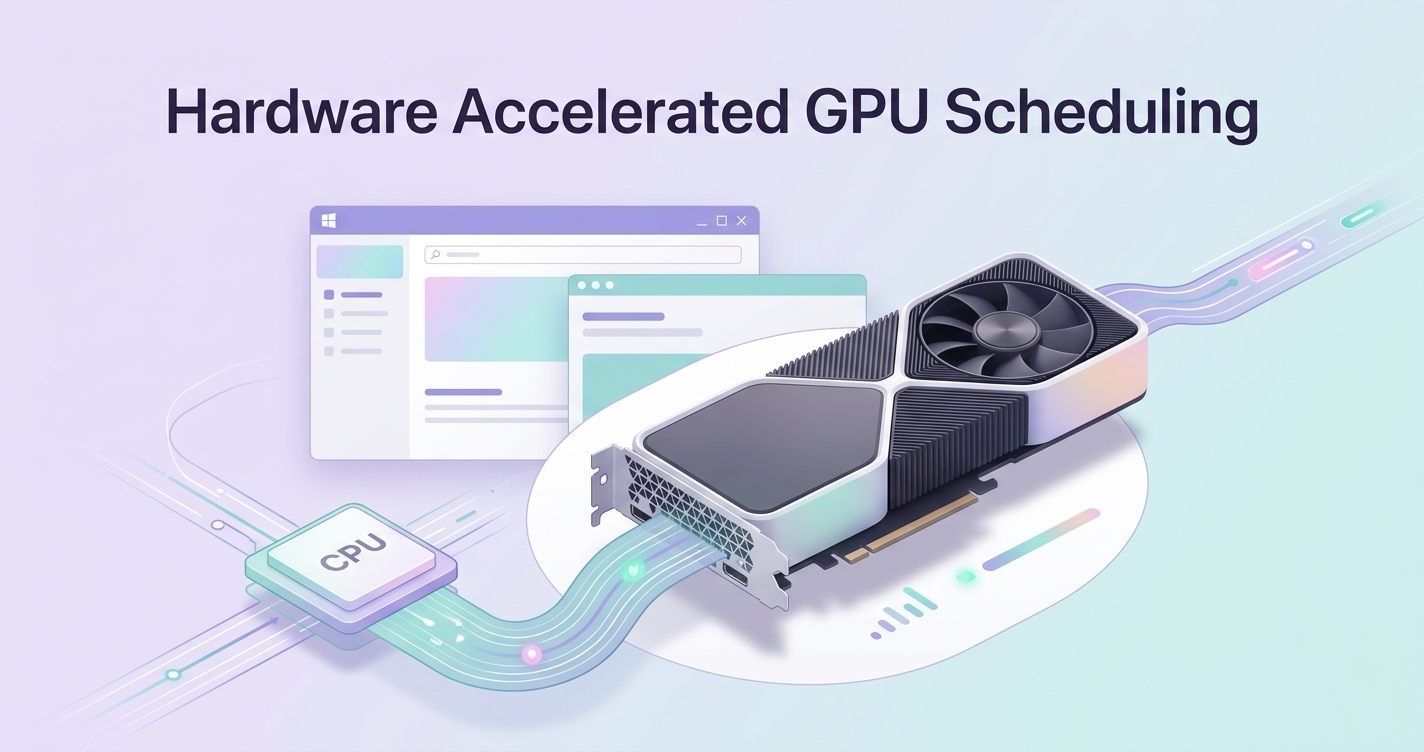
Modern computers are becoming more powerful every year, especially when it comes to gaming, video editing, 3D rendering, and other graphics-intensive tasks. However, having a powerful GPU alone is not always enough to achieve the best performance. The way Windows manages communication between the CPU, GPU, and applications also plays an important role in overall system efficiency. This is where Hardware Accelerated GPU Scheduling comes into the picture.
What Is Hardware Accelerated GPU Scheduling? It is a Windows feature designed to improve the way graphics workloads are handled by allowing the GPU to manage its own scheduling tasks instead of depending completely on the CPU. By changing how graphics commands are processed, this technology aims to reduce latency, improve workload management, and create a smoother connection between software and modern graphics hardware.
For many users, GPU settings can feel confusing. Questions like “Should I enable HAGS?”, “Does it increase FPS?”, or “Will it make my PC faster?” are common among gamers and PC enthusiasts. The truth is that Hardware Accelerated GPU Scheduling is not a magic performance booster, but it can improve efficiency on supported systems when the right hardware and drivers are used.
In this complete guide, you will learn how Hardware Accelerated GPU Scheduling works, why Microsoft introduced this feature, what benefits it can provide, which systems support it, and whether enabling HAGS is the right choice for your computer. Whether you are a gamer looking for smoother performance or a regular user trying to understand Windows graphics settings, this guide will help you make an informed decision.
What Is Hardware Accelerated GPU Scheduling?
Hardware Accelerated GPU Scheduling, commonly known as HAGS, is a Windows graphics feature designed to improve how your computer manages GPU tasks. It allows the dedicated graphics processing unit (GPU) to handle its own scheduling operations instead of relying completely on the CPU and Windows operating system. This can reduce communication delays between the system and graphics hardware, especially on modern gaming PCs and creative workstations.
Before HAGS was introduced, Windows handled most GPU scheduling tasks through a software-based scheduler managed by the CPU. The CPU was responsible for organizing when different graphics commands should be sent to the GPU. While this method worked well for many years, modern GPUs became significantly more powerful and capable of processing huge amounts of data quickly. As graphics workloads became more complex, Microsoft introduced HAGS to create a more direct relationship between the GPU and its workload management.
In simple terms, Hardware Accelerated GPU Scheduling gives the GPU more control over managing its own memory and rendering tasks. Instead of waiting for the CPU to organize every small instruction, the GPU can make scheduling decisions more efficiently. This design can potentially reduce latency and improve the overall responsiveness of graphics-heavy applications.
The feature was introduced with the Windows 10 May 2020 Update and requires compatible hardware, including newer graphics cards and updated drivers. It works with supported GPUs from manufacturers such as NVIDIA, AMD, and Intel. However, having a modern graphics card does not always guarantee noticeable improvements because the real-world impact depends on the system configuration, applications, and workload type.
For everyday users, HAGS may not create a dramatic visible difference while browsing the web, watching videos, or performing basic tasks. Its main purpose is to optimize demanding workloads where GPU performance matters, such as gaming, 3D rendering, video editing, and AI-related applications.
Understanding what Hardware Accelerated GPU Scheduling does helps users make better decisions about Windows performance settings. It is not a feature that automatically increases GPU power or upgrades hardware capabilities. Instead, it changes how Windows communicates with the graphics card, aiming to make resource management more efficient.
For users interested in improving overall PC performance, understanding related concepts like GPU drivers, graphics settings, and Windows optimization is also important. [Link to related article here: How to Optimize Windows for Better Gaming Performance]
How Does HAGS Work in Windows?
To understand how Hardware Accelerated GPU Scheduling works in Windows, it is important to understand the traditional relationship between the CPU, operating system, and GPU. Every graphical task on a computer follows a process where applications send instructions, Windows manages those instructions, and the GPU performs the actual rendering work.
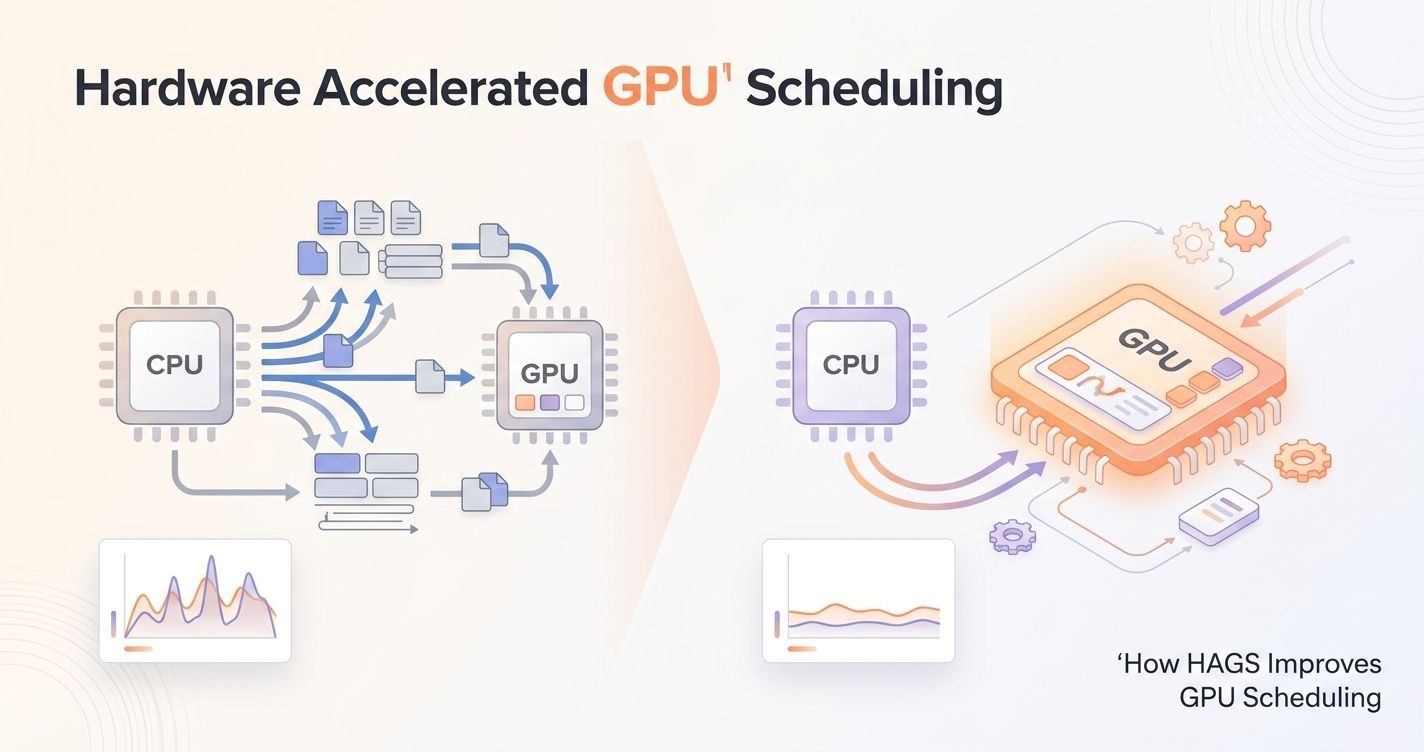
In the traditional scheduling model, Windows acts as a middle layer between applications and the graphics card. When a game or software application requests graphics processing, the CPU and Windows graphics scheduler organize these requests before sending them to the GPU. This process works reliably, but it adds an additional layer of management.
HAGS changes this approach by moving more scheduling responsibility directly to the GPU. Instead of the CPU managing every scheduling decision, the GPU’s own hardware-based scheduler takes over many of these tasks. This allows the graphics card to handle workload organization closer to the actual processing stage.
The process begins when a compatible application sends rendering commands to the system. Windows still manages communication between software and hardware, but the GPU receives more direct control over how tasks are arranged. The dedicated GPU memory manager then helps organize video memory usage and graphics workloads more efficiently.
This change is especially useful for modern GPUs because they are designed with advanced parallel processing capabilities. A powerful graphics card can complete thousands of operations simultaneously, meaning unnecessary delays in task management can affect performance. By reducing some CPU involvement, HAGS attempts to create a smoother workflow between the system and graphics hardware.
However, Hardware Accelerated GPU Scheduling does not completely remove the CPU from graphics processing. The CPU continues handling many important system tasks, game logic, physics calculations, and application instructions. HAGS simply changes the balance of responsibility between the CPU and GPU.
The actual results can vary depending on hardware specifications, driver optimization, and the software being used. Some users may experience lower input latency or smoother frame delivery, while others may notice little or no difference.
Windows users can enable HAGS through the Graphics Settings section inside Windows Settings. The option appears only when the system has compatible hardware and drivers. If the setting is unavailable, it usually means the GPU or driver does not support the feature.
Understanding this working process helps users avoid unrealistic expectations. HAGS is an optimization technology, not a performance upgrade tool. It improves how existing hardware communicates rather than making a graphics card more powerful than its physical limits.
Benefits of Hardware Accelerated GPU Scheduling
The main goal of Hardware Accelerated GPU Scheduling is to improve efficiency between Windows and the graphics card. While the results depend on the computer setup, HAGS can provide several potential benefits for users with modern hardware.
One important advantage is reduced GPU scheduling latency. In older scheduling methods, the CPU handled more responsibility for organizing graphics workloads. This additional management could create small delays, especially during demanding tasks. By allowing the GPU to manage scheduling more directly, HAGS can help reduce unnecessary communication steps.
Another potential benefit is improved system responsiveness during graphics-intensive workloads. Applications such as modern games, video editing software, 3D modeling tools, and other GPU-heavy programs can create significant workloads. A more efficient scheduling process may help the system distribute these tasks more smoothly.
HAGS can also improve CPU resource availability in certain situations. Since the GPU takes over some scheduling responsibilities, the CPU may have slightly fewer management tasks to handle. This does not mean users will suddenly receive extra processing power, but it can help create a more balanced workload distribution.
For gaming systems, one of the biggest advantages is the possibility of improved frame consistency. Modern games are not only dependent on average FPS numbers. Smooth frame delivery and reduced latency are also important factors that affect the overall gaming experience. HAGS may help optimize these areas on supported systems.
Another benefit is better support for newer graphics technologies. Features such as advanced rendering techniques, high-resolution gaming, and GPU-based workloads require efficient communication between software and hardware. HAGS was designed with modern computing demands in mind.
However, it is important to understand that benefits are not identical for every user. Some systems may see noticeable improvements, while others may experience almost no change. Factors such as GPU model, graphics driver version, game engine, processor performance, and system configuration all influence the outcome.
For example, a high-end gaming PC with a recent GPU may benefit more from HAGS compared to an older computer with limited graphics capability. Similarly, professional applications that heavily depend on GPU processing may respond differently than lightweight programs.
Hardware Accelerated GPU Scheduling should be viewed as a performance optimization option rather than a guaranteed upgrade. The best approach is testing the feature on your own system and comparing performance before and after enabling it.
Does HAGS Improve Gaming Performance?
One of the most common questions about Hardware Accelerated GPU Scheduling is whether it actually improves gaming performance. The answer depends on the hardware, game, and system configuration. While HAGS can provide benefits in certain situations, it is not a universal setting that guarantees higher FPS in every game.
Gaming performance depends on several components working together, including the graphics card, processor, RAM, storage speed, game optimization, and driver quality. HAGS mainly affects the communication and scheduling process between Windows and the GPU. It does not increase the physical power of the graphics card or create additional processing cores.
In some gaming scenarios, HAGS may help reduce latency and improve frame consistency. Competitive games where quick response times matter can sometimes benefit from lower scheduling delays. A smoother connection between the CPU and GPU may help reduce small interruptions during demanding gameplay.
However, many users expect HAGS to provide a major FPS boost, which is usually not realistic. Most performance improvements are often subtle because modern GPUs are already highly optimized. In some games, the difference may be difficult to notice without detailed testing.
The impact can also change depending on the type of game. A GPU-heavy title running at high resolutions may respond differently compared to a CPU-limited game. If the processor is already the main performance limitation, HAGS may provide little improvement because the graphics card is not the primary bottleneck.
Some users have also reported issues after enabling HAGS, including occasional stuttering or compatibility problems. These situations are usually related to specific drivers, hardware combinations, or software conflicts rather than the feature itself.
The best way to evaluate HAGS is through practical testing. Users can compare the same game scenes, monitor FPS stability, check input response, and observe whether gameplay feels smoother. Performance monitoring tools can help identify whether the feature creates a meaningful difference.
For most modern Windows gaming systems, enabling HAGS is generally safe to try. If the gaming experience improves, keeping it enabled makes sense. If problems appear, disabling it is simple and allows users to return to the previous scheduling method.
Ultimately, Hardware Accelerated GPU Scheduling is a useful Windows optimization feature, but it should be considered one part of a complete gaming performance strategy.
Best GPU Settings for Maximum Gaming Performance
HAGS Compatibility and System Requirements
Hardware Accelerated GPU Scheduling is not available on every computer because it depends on the combination of Windows version, graphics card, and driver support. Before enabling this feature, users should first confirm whether their system meets the required conditions. Trying to find HAGS settings on an unsupported device will usually result in the option being missing.
The first requirement is a supported Windows version. HAGS was introduced with the Windows 10 May 2020 Update and is also available on newer versions, including Windows 11. If a computer is running an outdated Windows version, the feature may not appear even if the graphics card supports it.
The second important factor is GPU compatibility. Modern graphics cards are designed to support advanced scheduling features, but older models may not have the required architecture. Updated drivers are also essential because GPU manufacturers regularly improve compatibility and performance through driver updates.
Here is a general compatibility overview:
| Component | Requirement |
| Operating System | Windows 10 version 2004 or newer, Windows 11 |
| NVIDIA GPUs | GeForce GTX 10 series and newer (with supported drivers) |
| AMD GPUs | Radeon RX 5000 series and newer (with supported drivers) |
| Intel GPUs | Supported Intel Arc and newer graphics solutions |
| Driver | Latest graphics driver recommended |
| Hardware | Dedicated GPU recommended |
A common example is a user who installs Windows 11 on an older gaming PC but cannot find the Hardware Accelerated GPU Scheduling option. In many cases, the issue is not Windows itself but the graphics card generation or outdated driver. Updating the GPU driver from the manufacturer’s official software can sometimes make the option available.
Another situation happens when users have a powerful GPU but still cannot enable HAGS. This often occurs because Windows is using an old driver installed automatically through Windows Update. Installing the latest NVIDIA, AMD, or Intel driver can resolve this problem.
Users should also understand that compatibility does not always mean performance improvement. A supported RTX graphics card with an outdated CPU or poor cooling system may not experience noticeable benefits because other hardware limitations can affect overall performance.
Before changing advanced graphics settings, it is recommended to check your current system information, including GPU model, Windows version, and driver version. This simple step helps avoid unnecessary troubleshooting and ensures that HAGS is being tested under suitable conditions.
How to Enable Hardware Accelerated GPU Scheduling
Enabling Hardware Accelerated GPU Scheduling in Windows is a simple process, but users should understand that the option only appears when compatible hardware and drivers are detected. If the setting is missing, it usually indicates a compatibility issue rather than a Windows error.
The process starts by opening Windows Settings and navigating to the graphics options. Microsoft placed HAGS inside the system graphics settings because it directly affects how Windows manages GPU workloads.
Follow these steps:
| Step | Action |
| 1 | Open Windows Settings |
| 2 | Select System |
| 3 | Open Display settings |
| 4 | Choose Graphics |
| 5 | Select Change default graphics settings |
| 6 | Enable Hardware-Accelerated GPU Scheduling |
| 7 | Restart your computer |
After restarting, Windows applies the new GPU scheduling method. The restart is necessary because the change affects how the operating system communicates with the graphics hardware.
For example, a gamer using an RTX 3060 may enable HAGS before playing competitive games. After restarting, they can compare gameplay performance by checking frame consistency, input response, and overall smoothness. If the experience improves, the setting can remain enabled.
Also Read: Understanding WebGPU Performance Optimization and Why It Matters
However, some users face problems after turning on HAGS. A common issue is random game crashes, graphical glitches, or stuttering. This does not necessarily mean the GPU is damaged. It can happen because of driver conflicts or poor optimization with certain applications.
| Problem | Possible Solution |
| HAGS option missing | Update Windows and GPU drivers |
| Games start crashing | Disable HAGS and test again |
| Stuttering appears | Update drivers or reset graphics settings |
| No performance difference | Keep the setting based on stability |
Another common mistake is enabling HAGS and expecting instant FPS improvements. Since the feature changes scheduling behavior rather than increasing GPU power, the difference may be small or only noticeable in specific workloads.
Users should test the setting under normal usage conditions instead of judging it after a few minutes. Playing the same game, using the same graphics settings, and comparing performance before and after enabling HAGS provides a more accurate result.
Should You Turn On HAGS? Final Verdict
Whether you should enable Hardware Accelerated GPU Scheduling depends on your hardware, workload, and personal experience. There is no single answer that works perfectly for every computer because different systems handle GPU scheduling differently.
For most users with modern gaming PCs, enabling HAGS is worth trying. Recent GPUs are designed to take advantage of newer Windows graphics features, and many systems can run the feature without problems. However, users should evaluate the results instead of assuming it will automatically improve performance.
The decision becomes easier when looking at different use cases:
| User Type | Recommendation |
| Modern gaming PC with RTX/RX/Arc GPU | Enable and test |
| Competitive gamers | Try enabling for possible latency improvements |
| Video editors and 3D creators | Test with GPU-heavy applications |
| Older computers | Benefits may be limited |
| Users facing crashes or stutters | Disable and troubleshoot |
For example, a creator using GPU acceleration in video editing software may notice smoother timeline performance after enabling HAGS. On the other hand, a casual user who mainly watches videos and browses the internet may not notice any visible difference.
One important point is that HAGS is not a replacement for hardware upgrades. If a computer has limited RAM, an outdated processor, or an entry-level graphics card, changing GPU scheduling will not solve major performance problems.
Another practical example is gaming troubleshooting. Suppose a player enables HAGS and notices small improvements in frame stability. Keeping it enabled makes sense. But if another player experiences random crashes after activation, disabling the feature is the better choice because system stability is more important than a possible minor improvement.
The best approach is simple: enable HAGS, test your normal workload, and compare the results. Every computer behaves differently because performance depends on many factors, including drivers, games, applications, and hardware combinations.
Overall, Hardware Accelerated GPU Scheduling is a useful Windows feature that improves how modern systems manage graphics workloads. It is generally safe to enable on supported devices, but users should focus on real-world performance rather than expecting a guaranteed FPS boost.
A balanced system with updated drivers, optimized settings, and suitable hardware will always have a bigger impact than one single Windows option.